PyCharm
For this presentation, I will be presenting using one set of IDEs made by the company Jetbrains.
Specifically, I will be using PyCharm, which is their Python IDE.
This is a professional grade IDE, which you can get for free.
Quick Start
When you open PyCharm up for the first time, you will encounter a screen that looks like this:
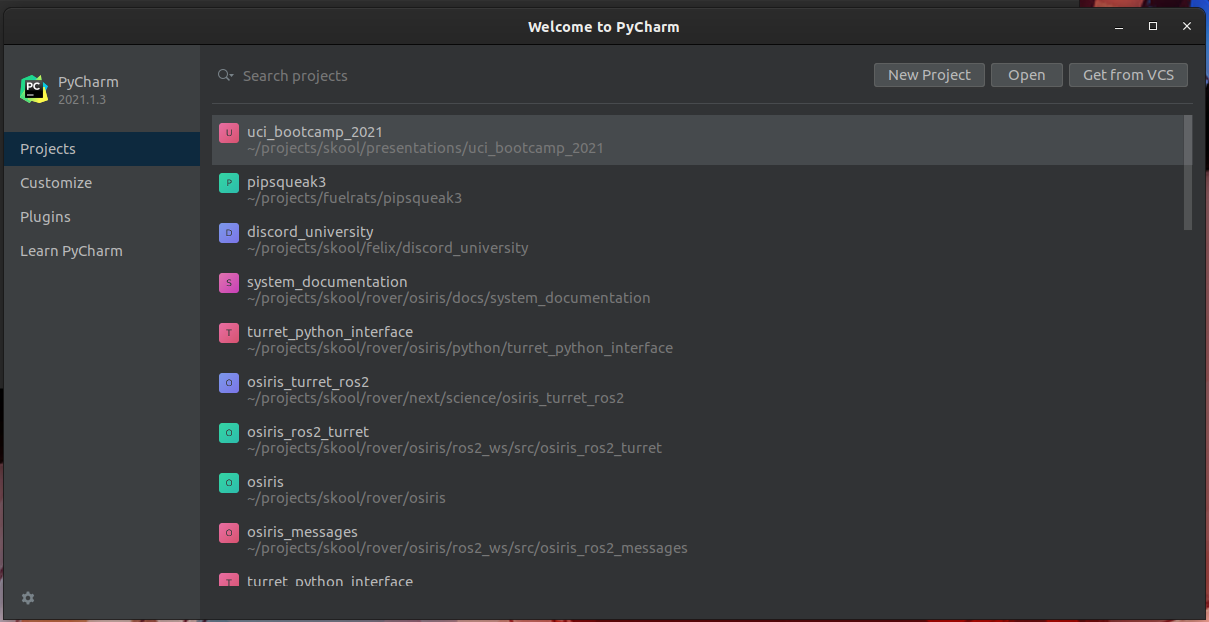
If you haven't done anything with the IDe yet, your projects view will likely be empty.
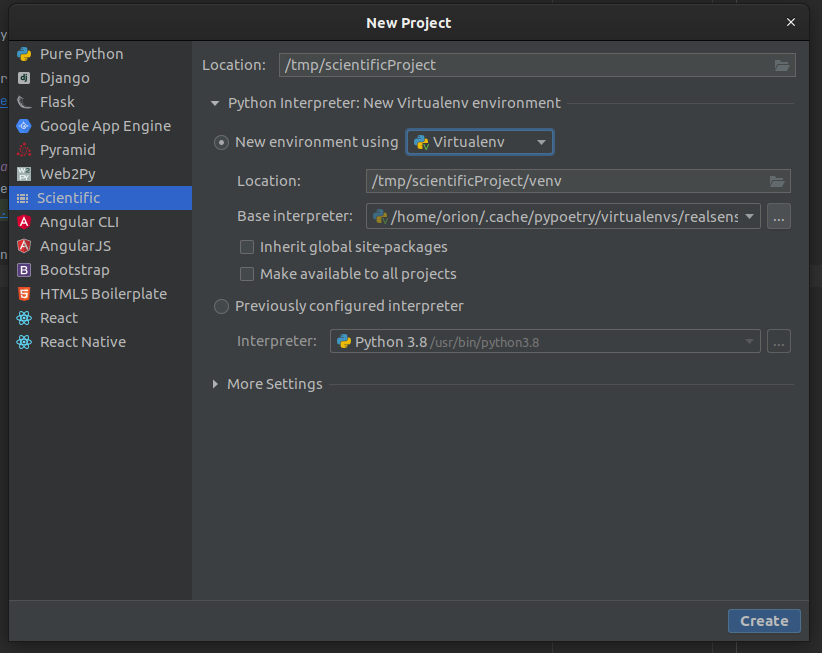
Pycharm offers sane defaults for a range of application types. When creating a python project, it will even create a virtual environment for you.
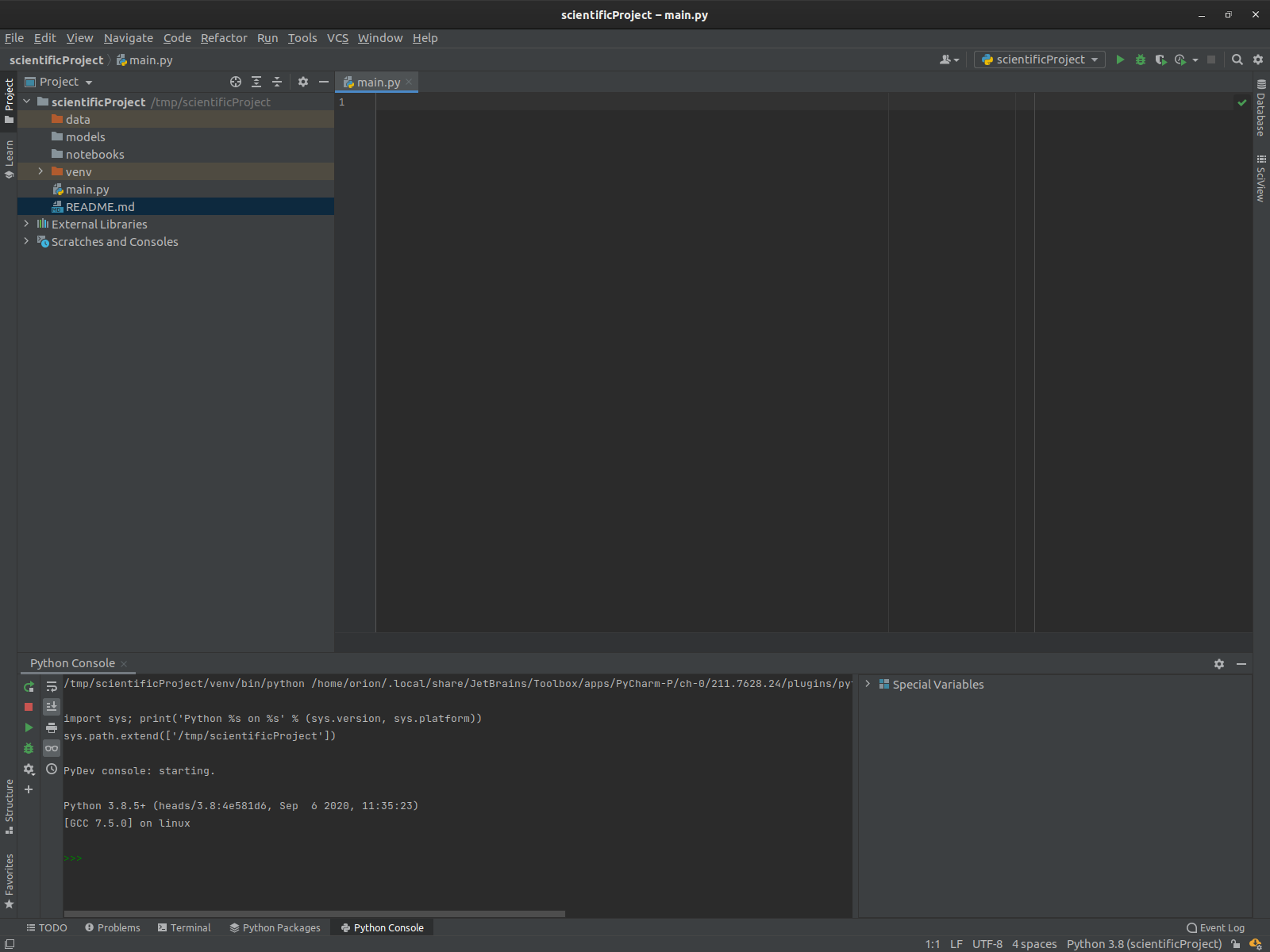
Anatomy of the IDE windows
-
Pycharm spawns in one window by default, and includes several "tabs"
-
The left tab is the "project" view: it corresponds to the filesystem structure of the project.
-
the bottom tab has multiple views, in this case the Python console.
-
Other tabs exist, such as the
Terminalwindow which gives access to the OS shell, and even some language-specific features. -
There are also tabs that only show up in certain contexts, such as the debugger window.