Syntax highlighting and Code completion
Now that we have an editor window, we should write some code!
Classically, the jumping off point is hello-world
As we start typing into the main.py provided to us, a window pops up.
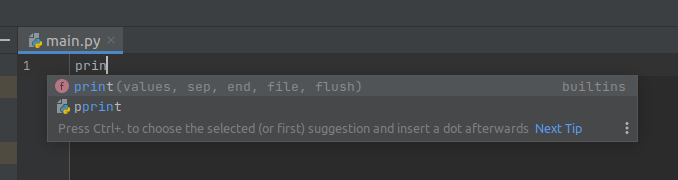
This is one of an IDEs central features: Code completion! Also shows usage hints!
- The IDE can render hints on how a function to be used
- The IDE knows what symbols are valid in a given context, and can intellegently present those as you write.
Code Completion
Basically, the IDE has enough intellegence to figure out what you're trying to do, and offer to help
you with it. If you press
The IDE knows what is valid and what is not; if the name of the variable/function/method isn't completing; you've probably gotten something wrong writing the code!
Here is a slightly longer example that demonstrates how this can be useful a bit more clearly:
Say we have an string of values out of a CSV, foo,bar,baz,snafu and we want to split them up so we
can process each value seperately. We happen to know that strings have
a str.split method that gets the job done,
so we start typing that:
(For more information about Python, please attend my second presentation, where I give A crash course in Python for Computer Science)
print("foo,bar,baz,snafu".split(','))
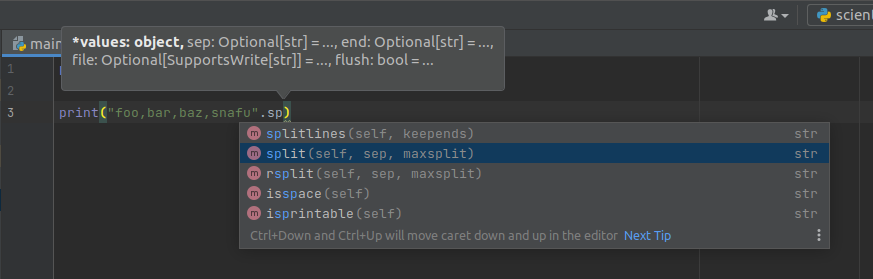
Here, PyCharm clearly understands what kind of objects it has to work with, as well as what operations
are valid on them.
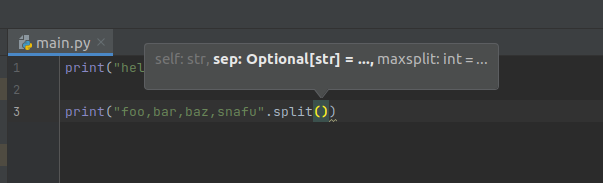
To keep these documents and this presentation concise, some details have been omitted. For further reading, please consider reading over PyCharm's user manual
Syntax Highlighting
Syntax highlighting can show, at a glance, if a piece of code is valid syntax and, once you get used to the colors, if the structure looks right.
If your code isn't highlighting the way you expect, something is written incorrectly.
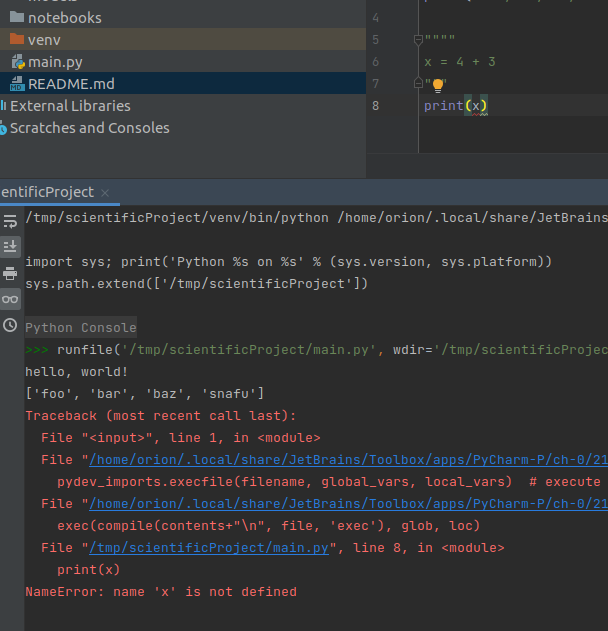
- In this example, x is highlighted as if it is a string!
- It is, in fact, a string, which is clearly incorrect and is why the code fails to run.
- At a glance, the programmer can spot this error, regardless of other tools.